How to Create an Entity
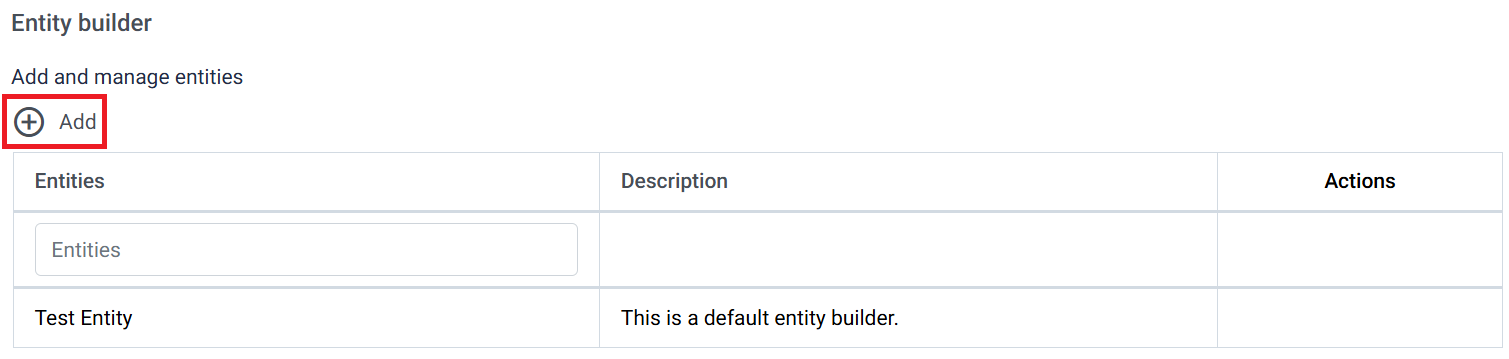
To start creating an Entity, click on the Add button at the top left of the Entity Builder page:
This will take the user to a new Form Builder to start creating a new Entity, with an Overview page to fill in their Entity’s basic identifying details:
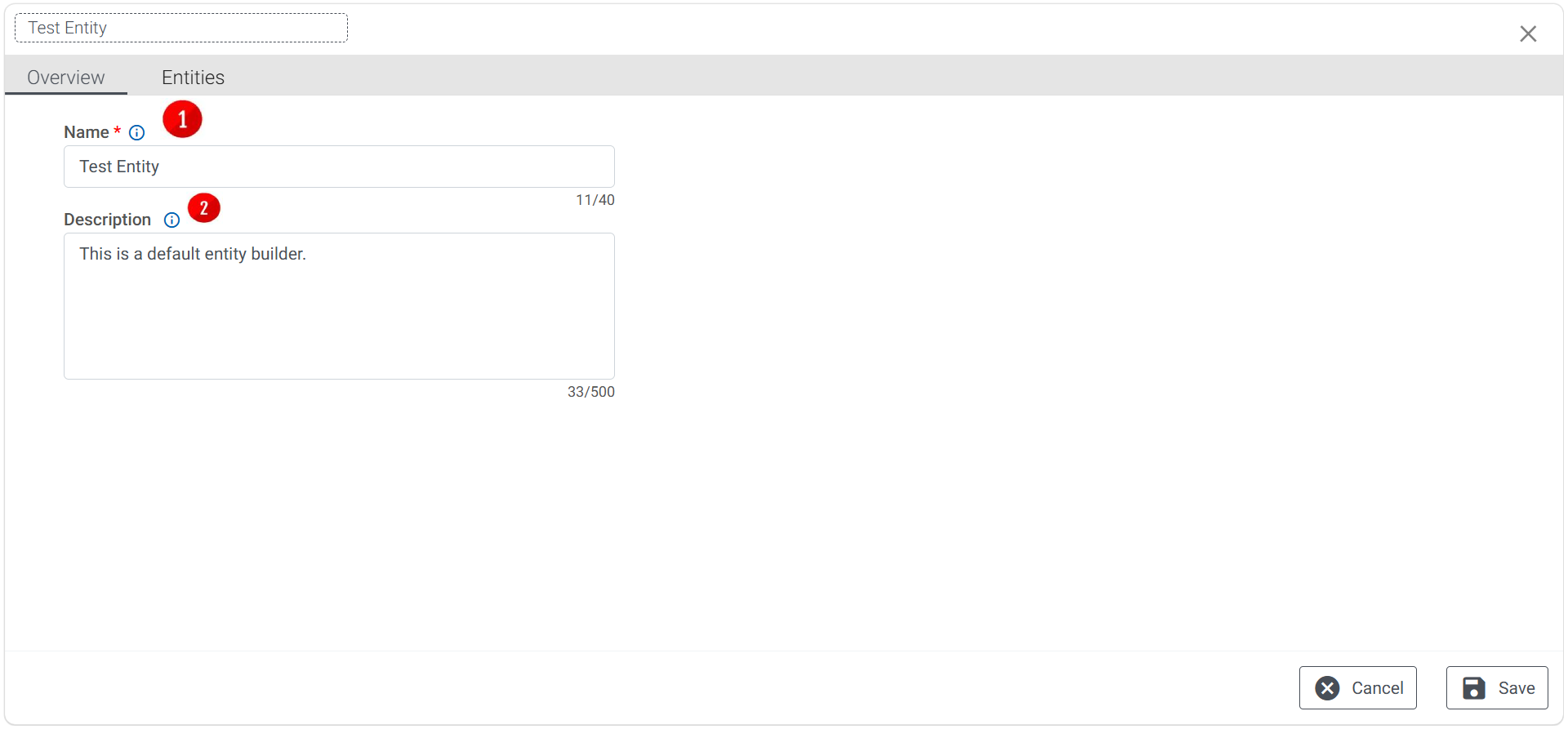
- Title: What the user would like to call the Entity as a whole
- Description: A small description of what the Entity serves to function
Once the user has named & described their Entity, they can then click on Save in the bottom right corner, or the Entities tab, to proceed to the next stage.
This will take the user to the Entities tab, which holds all the details and formatting the user will need to create their Entity:
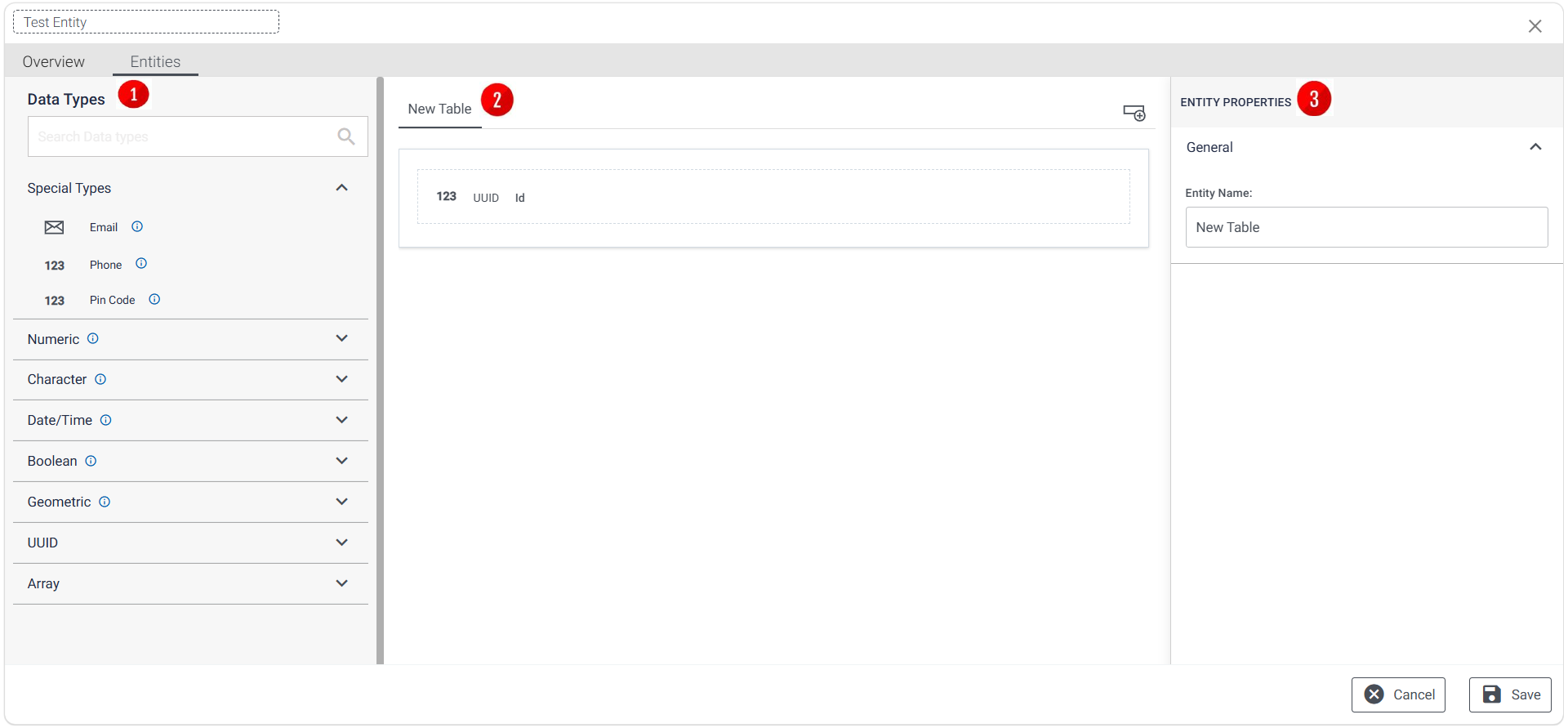
- Data Types: The available types of data for building the Entity. See the Entity Data Types section for more information.
- Tables: The Entity’s composite tables.
- Properties: The qualities of each table and data type selected, as modified by the user. See the Entity Properties section for more information.
To insert a particular data type into a table, expand the section within which the targeted data type resides, and drag that data type onto the table:
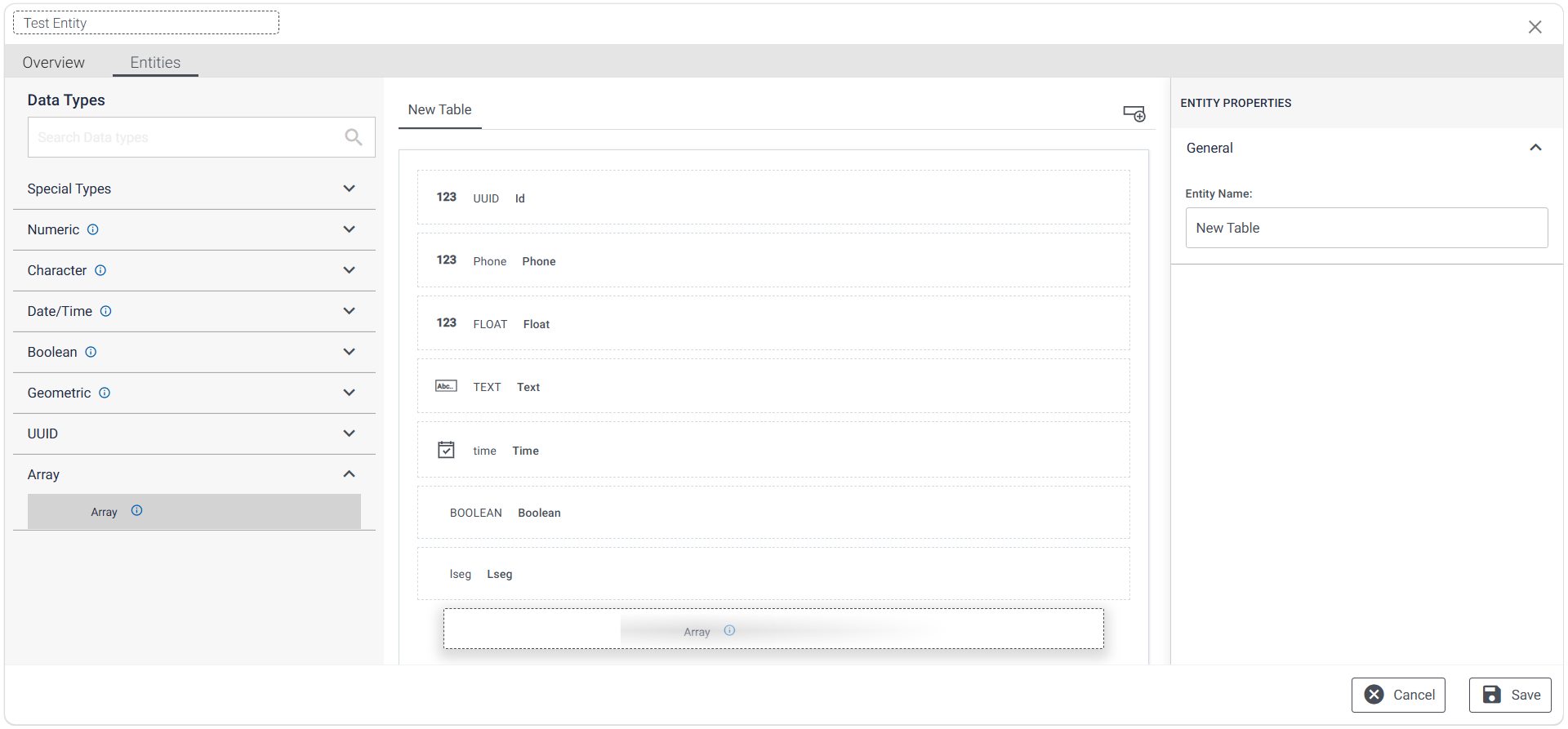
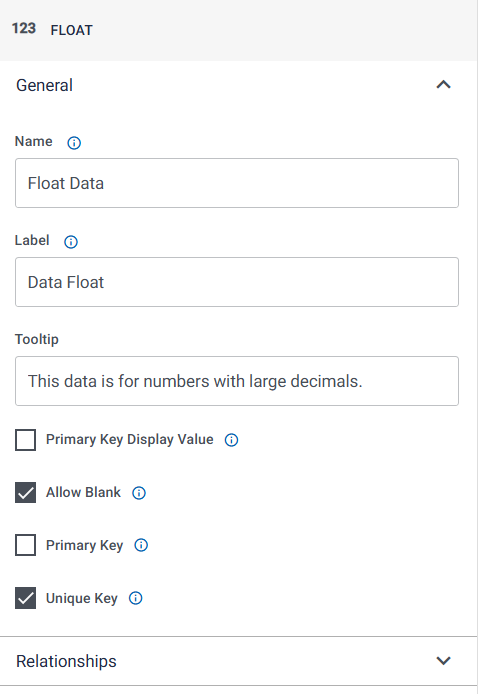
These data fields can be adjusted as per the necessary requirements using the General Properties section on the right:
When a data field is inserted onto a table, hovering over it will produce some actions the user can employ to adjust their table:
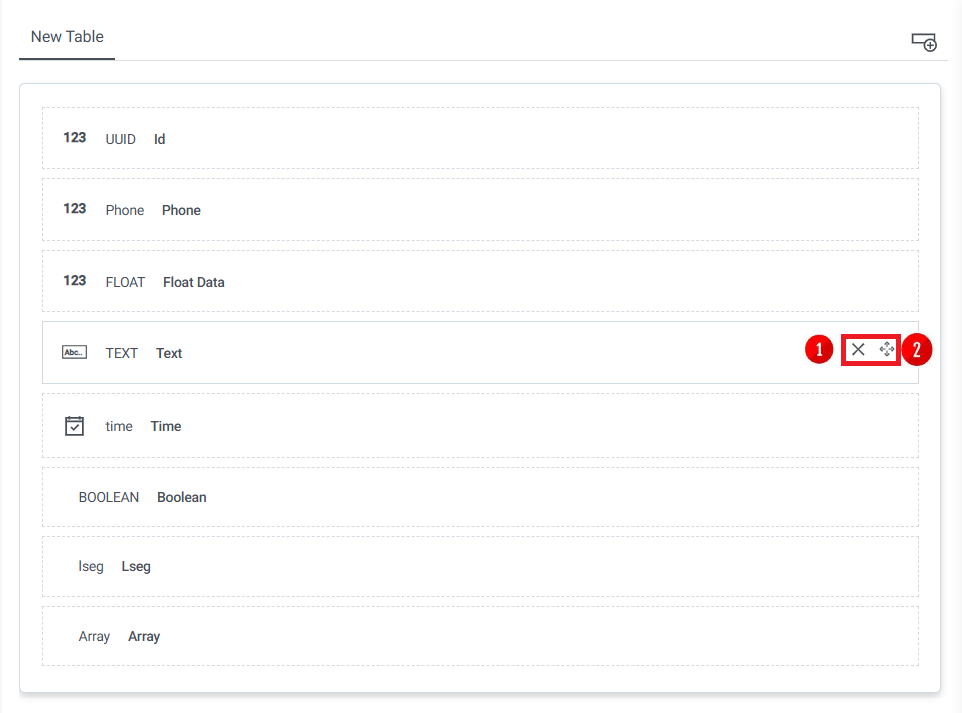
- Delete: symbolised by an X, click this to delete the data field from the table.
- The user cannot delete the UUID field on the default table.
- Move: symbolised by a four-way arrow, click and hold this to select the data field whose position needs adjusting in relation to the table, and drag it to where the data field should go.
To create a new table within the Entity, click on the tab on the top right of the Table section, and select “Add Entity” to display a new table:
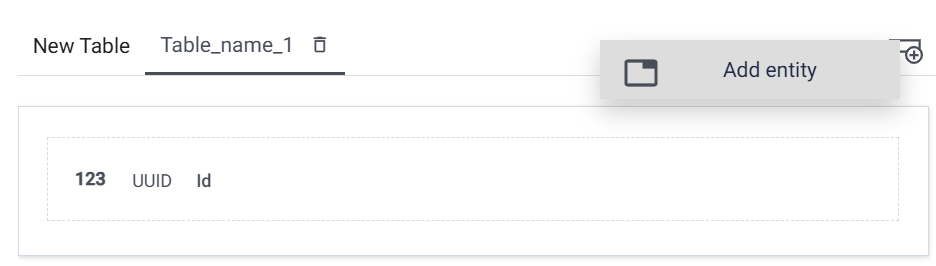
This also adds a reference to this table to the Entities section of the Operations tab on the home page.
The default table in an Entity cannot be deleted. To delete a created table from the Entity, click on the dustbin icon to the right of the name of the table:
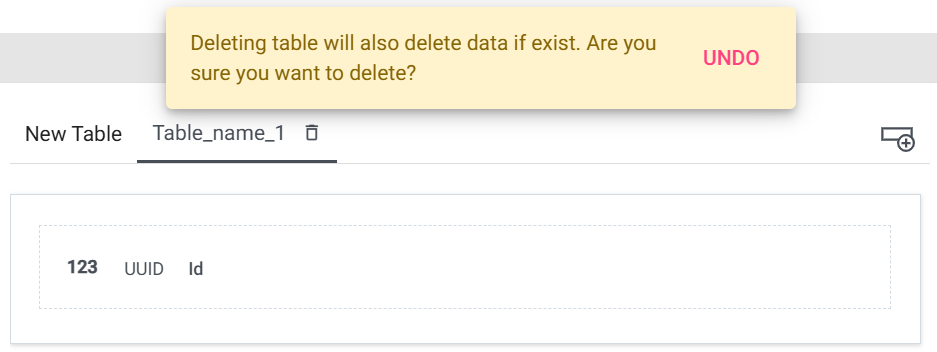
This will delete the table from the existing Entity, and the Entities section on the Operations tab.