Application Panel
The Application panel is a dedicated section designed for administrators to efficiently manage and create Applications. It provides tools for adding, modifying, enabling/disabling, deleting and duplicating Applications.
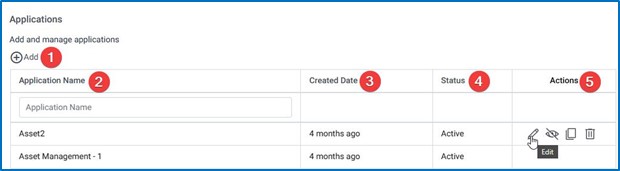
- Add: This option is used to create a new application. In the upcoming chapters, we will cover the steps and information required for creating a new application.
- Application Name: The Application Name section displays a list of all the applications that have been created. Additionally, there is a search bar available where you can enter the name of the application and search for a specific application from the list.
- Created Date: The Created Date column indicates the date when an application was created. It provides information about when the application was initially set up.
- Status: The Status column indicates the current status of the application. It can be either active or inactive, depending on its operational state.
- Actions: When you hover the mouse pointer over the action column corresponding to a specific application, it presents you with four options:
- Edit: This option allows you to make changes to the application. You can modify its settings, configurations, or any other relevant information.
- Change Status: You can use this option to switch the status of the application. By selecting either “active” or “inactive,” you can control whether the application is currently operational or not.
- Delete: This option allows you to permanently remove the application from the system. Exercise caution when using this option, as it cannot be undone.
- Duplicate: This option creates a copy of the application. It can be useful if you want to create a similar application without starting from scratch, as it saves time and effort.