Overview
This guide describes how to create and deploy a custom Microsoft Teams app package for integrating your application with Microsoft Teams.
Creating an MS Teams App Package
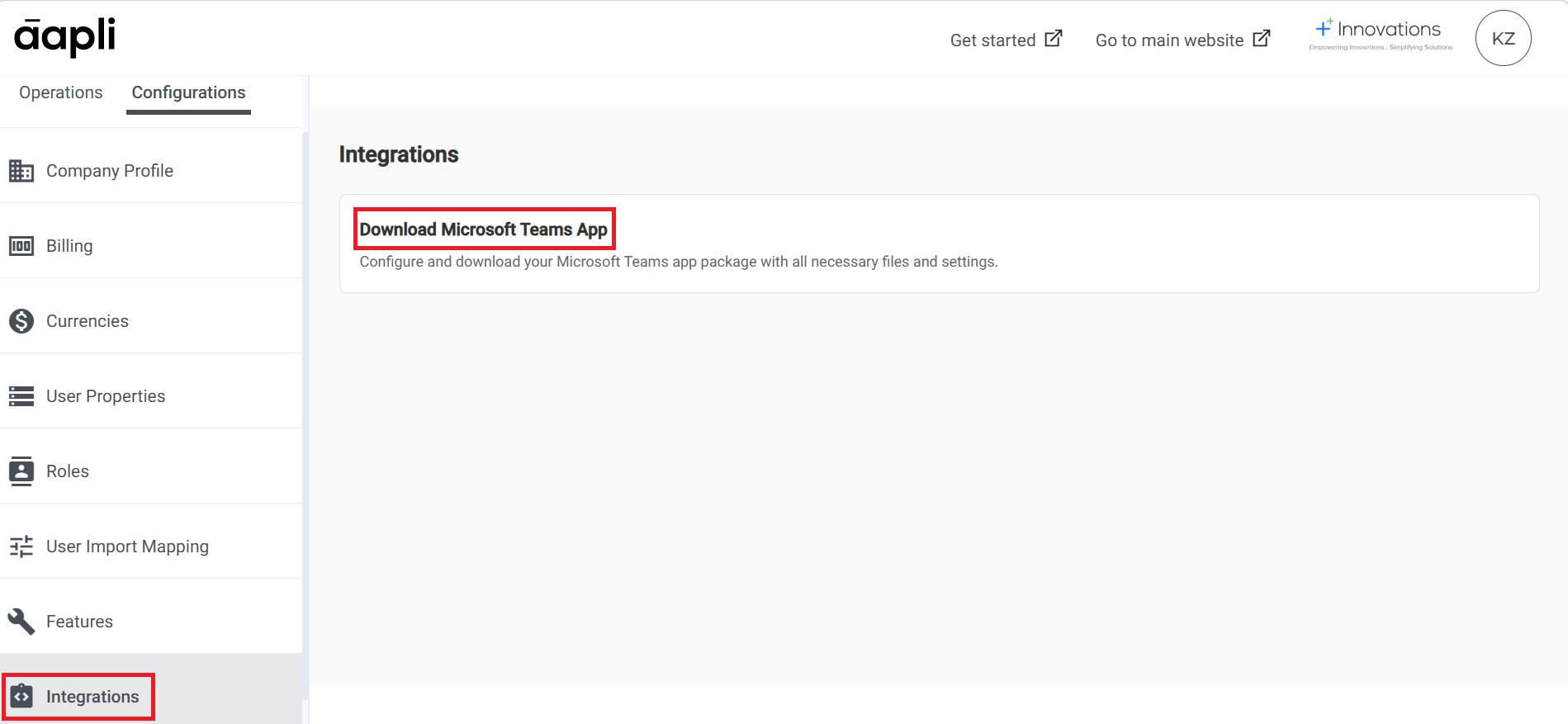
Step 1: Access the Integration Settings
- Navigate to the Integrations section of the Configurations page in the Admin portal.
- Click Download Microsoft Teams App.
Step 2: Configure App Settings
An overlay will appear where you can configure your custom app details. Complete the following fields:
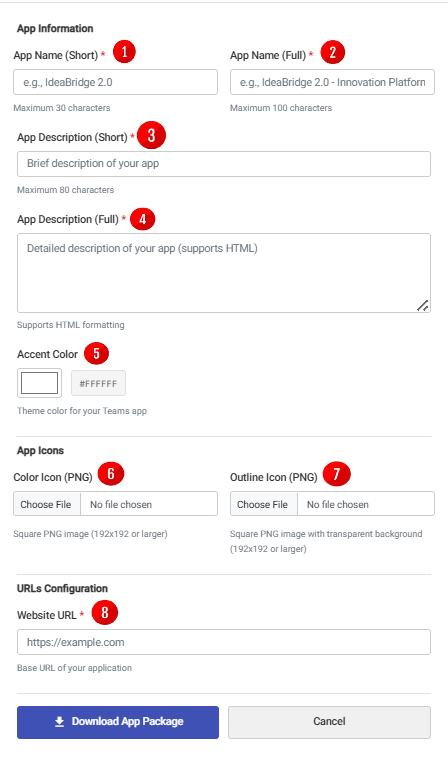
| Field | Description | Requirements |
|---|---|---|
| App Name (Short) | Short display name for the app | - |
| App Name (Full) | Full name of the app | - |
| App Description (Short) | Brief description of the app’s functionality | - |
| App Description (Full) | Detailed description of the app’s features and functionality | - |
| Accent Color | Primary color for the app icon background | Hex color code |
| App Icon | Main app icon displayed with the app name | PNG format, minimum 128x128px |
| Outline Icon | Icon displayed in the Teams toolbar | PNG format, minimum 128x128px |
| Website URL | Target URL for the custom app | Valid URL |
Step 3: Generate the App Package
- Review all entered information for accuracy.
- Click Download App Package to download the package to your local system.
- To cancel the operation, click Cancel.
Uploading the Custom App to Microsoft Teams
To install and configure the custom app package in Microsoft Teams, refer to the official Microsoft documentation:
Upload a custom app in Microsoft Teams
Follow the step-by-step instructions provided by Microsoft to complete the installation and access your configured Ideabridge service within Teams.